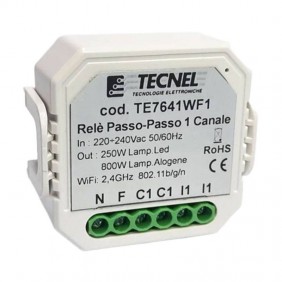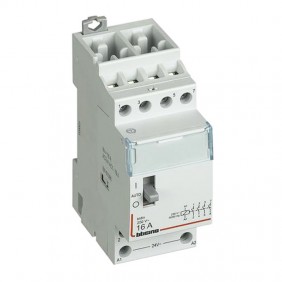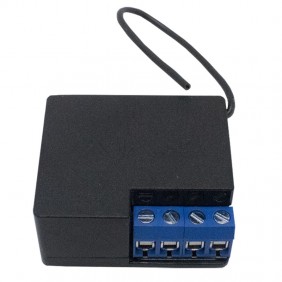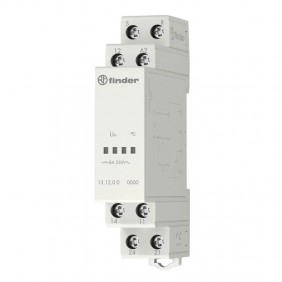

Tecnel Push and WiFi Step Relay 2 Channels 10A 230V TE7642WF
TTE TE7642WF
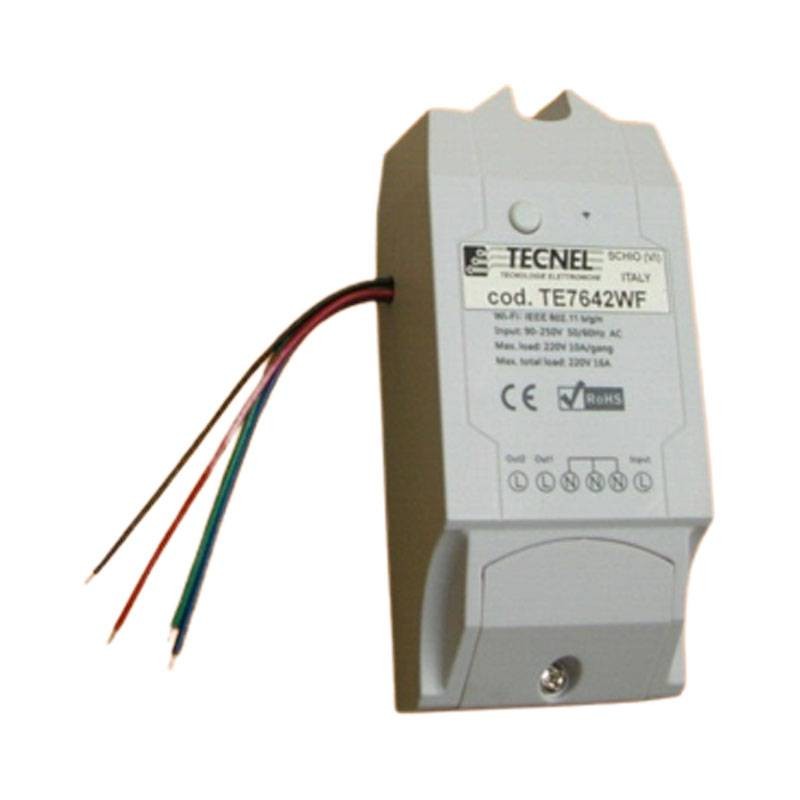
Tecnel Push and WiFi 2-Channel Step Relay with app or wired control with the following features:
- Input voltage: 230Vac 50Hz
- Contact: 10A 230Vac
- Control signal: Push buttons
- Technology: Step-by-step relay
- Degree of protection: IP20
Tecnel Push and WiFi Step Relay 2 Channels 10A 230V TE7642WF
€66.22
Tax included
€66.22
Tecnel Push and WiFi Step Relay 2 Channels 10A 230V TE7642WF
€66.22
Tax included
Tax included
-20€
EXTRA
Add the coupon code in the payment page

Limited-time promotion
Out of stock
Incoming
qty
Tecnel Push and WiFi Step Relay 2 Channels 10A 230V TE7642WF
€66.22
Pay in installments with KlarnaPush and Wifi electronic 2-channel multi-control step relays via app available on Google Play Store or iOS App Store as per instructions attached to product package. External commands via NA buttons or touch buttons or wireless radio with Remote Control and FM Receivers with contacts released from the supply voltage and with connections limited to a few meters. For connections with greater distances defer control to suitable impulsive monostable relays.
Other functions:
- Delete devices: To delete a device you must go to the 'device list, tap Delete Icon or access the device you wish to delete and tap the "Delete" button in the upper left corner
- Manage group, scene , smart scene: Enter the device list page "All devices", click to expand it, you will see all your devices
- Tap "Manage group" to create a new group. Tap the 'top right corner of the "All Devices" page. , you will see "Scene", click on it to manage the scene
- Group : You can specify each device in a group. This helps you easily manage a large amount devices. For example, you can create a group called "Kitchen" where all devices installed in the kitchen are specified. To manage them you can simply enter the "Kitchen" page and act on all devices. You will be able to enter a group, delete it or add more devices. If you delete a group the devices belonging to this group will still be present in the "my device" list
- Scene: A scene can contain many devices, you can set the status of each device to Close, Open, or Keep and save it. All devices will automatically run in the preset state
- 1 Download the eWelink APP to your smartphone or tablet via the QR code.
- 2 Install the APP on your smartphone
- 3 Register for new account: You will need to enter your email address and password ( at least 8 characters ) and confirm the verification code via SMS for registration
- 4 Open the application by logging in with your account
- 5 Add devices
Android eWeLink version:
- For Android version you need to enable WiFi on your smartphone before adding to device
- Long press the learn button on the device for 8/10 seconds until the LED on it starts blinking fast
- Click on the + icon at the bottom of the APP ( add device )
- Select the Quick Pairing option ( Touch ) and press Next
- Select your WiFi account and enter the Password, click remember WiFi password so that you will not have to recompile it the next time and click Next
- The device will automatically search for the device and perform the pairing
- Assign a name to the device , turn it on and check it out
iOS eWeLink version:
- Click the search icon in the middle
- Long press the learning button on the device for 8/10 seconds until the LED present starts flashing rapidly
- Click Next
- If the device belongs to the 2nd generation open Settings-Phone-WiFi-connect WiFi starting with ITEAD and enter the default password
- Return to the APP to confirm
- Select your WiFi account and enter the SSID Password ( if no password keep the field blank), the device will automatically search for the device and do the 'pairing
- Assign a name to the device, submit , turn it on and check it out
Data sheet
- Type: Relays
- Model: Wifi
- Installation: Recessed